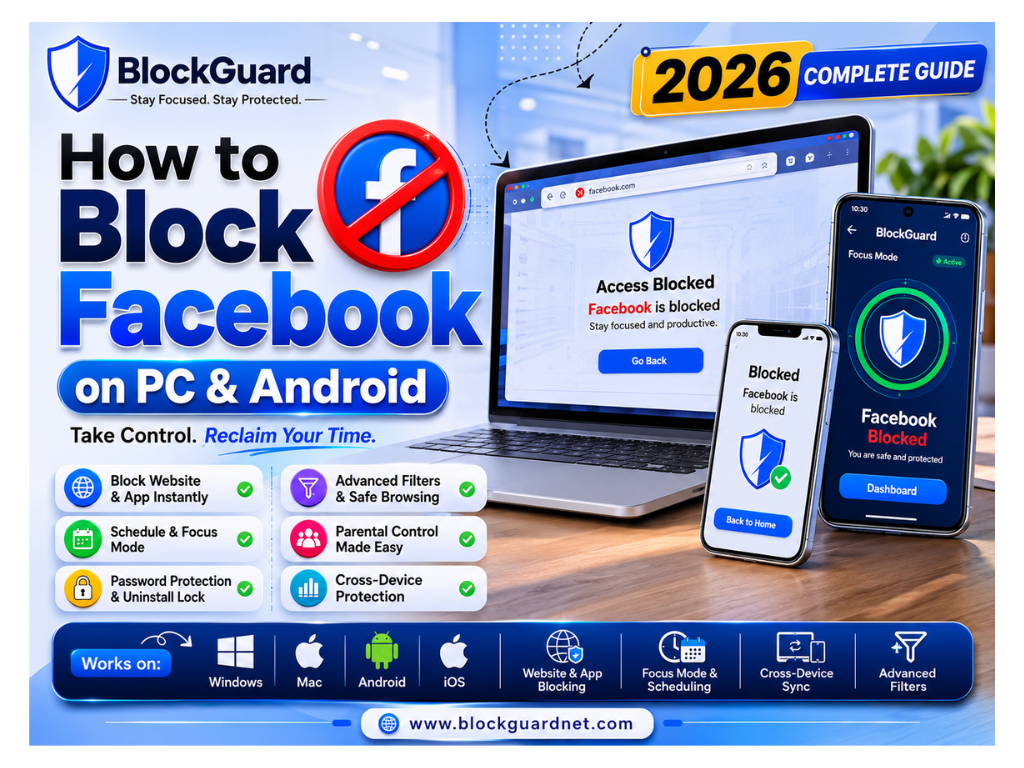
Facebook is a double-edged sword. It connects you with friends and family, but it’s also one of the most powerful attention-sapping forces on the planet. A “quick check” for a message can effortlessly turn into an hour of mindless scrolling, stealing your time and focus.
You’ve landed here because you’re looking for a solution. Whether you’re a student trying to study, a parent wanting to protect your child, or a professional looking to reclaim your productivity, learning how to block Facebook is the most effective step you can take.
This complete guide covers everything—from simple browser extensions to advanced cross-device solutions, with clear comparisons and step-by-step instructions. We’ve tested and verified each method on Windows, Mac, Android, and iPhone to give you the most accurate, practical advice. Let’s take control of your digital life.
Why Trust This Guide?
This guide was created after reviewing official documentation from Meta, Google, Apple, and Microsoft, along with practical testing of different Facebook blocking methods. We regularly update this article to reflect the latest browser, operating system, and app changes so readers receive accurate and current guidance.
Our Testing Methodology:
The BlockGuard Research Team tested Facebook blocking on Windows 11, macOS Sequoia, Android 15, and iOS 26 using browser extensions, built-in parental controls, router filtering, and BlockGuard. Each method was evaluated based on setup time, bypass resistance, scheduling flexibility, and ease of use. This hands-on experience ensures our recommendations are practical and effective.
The “Why”: Understanding the Need for a Facebook Blocker
Before we dive into the “how,” let’s explore the “why.” You need more than just a method; you need the conviction to use it effectively.
What is Facebook Blocking?
Quick Answer: Facebook blocking is the act of using a tool, software, or settings to prevent access to the Facebook website and its mobile app on a specific device, network, or browser. It’s a digital boundary that helps you control your attention.
Key Takeaway: It’s not a permanent barrier against a bad habit but a powerful tool to break the automatic loop of checking the platform.
Blocking Facebook isn’t about censorship; it’s about intentionality. It’s about deciding that during certain times—like work hours, study sessions, or family dinners—Facebook is off-limits. By placing a barrier between you and the distraction, you reduce the constant temptation to check in.
Key Benefits of Blocking Facebook
- Skyrockets Productivity: For students, remote workers, and freelancers, removing Facebook eliminates one of the biggest distractions. A study by researchers found that mere exposure to social media can impair cognitive function and self-control. A Facebook blocker acts as a productivity tool, keeping you focused on the task at hand.
- Improves Digital Wellbeing & Reduces Screen Time: Constant check-ins fragment your attention. Blocking the platform helps create clear boundaries, reducing the total screen time you spend on social media. This directly supports a healthier digital wellness routine.
- Essential Parental Control Tool: Facebook can expose children to inappropriate content, messaging from strangers, and cyberbullying. A robust parental control tool can block the app and website, providing a safer online experience for younger family members.
- Effective Facebook Addiction Treatment: For many people, Facebook use is a deeply ingrained habit. If you’ve ever asked yourself, “How do I stop using Facebook?”, blocking is the most effective self-control technique. It doesn’t rely on willpower alone, which can be depleted; it relies on a hard barrier.
Who Should Use a Facebook Blocker?
- Students: Need to focus on studying for exams or writing essays without the ping of notifications.
- Parents: Want to protect their children from online risks and manage their screen time.
- Teachers: Need to demonstrate focused work and manage their own digital wellness.
- Office Workers & Remote Employees: Must stay productive during work hours and avoid a dip in performance.
- Businesses: Can use site blockers to enforce company policies and ensure their employees are focused on work tasks.
- Digital Wellness Users: People actively trying to reduce their dependence on social media.
Statistics and Expert Insights
- Productivity Loss: A study by the University of California, Irvine, found that it takes an average of 23 minutes to refocus on a task after an interruption. This is a significant loss of cognitive performance.
- Addiction & Mental Health: A 2021 study published in the journal “Addictive Behaviors” found a strong correlation between Facebook addiction and higher levels of anxiety, depression, and stress.
- Screen Time: The average person spends nearly 2.5 hours per day on social media, a significant portion of which is on Facebook. This time could be better spent on work, study, hobbies, or real-world relationships.
Expert Tip: Think of a Facebook blocker as a safety net, not a prison sentence. Use it to enforce your most productive habits, not to punish yourself.
Comparison of Facebook Blocking Methods
This table provides a high-level comparison of the different methods we’ll detail below. For more comprehensive, user-friendly blocking, a dedicated app like BlockGuard is the best choice.
| Method | Best For | Platform | Key Features | Ease of Use | Cost | Effectiveness |
|---|---|---|---|---|---|---|
| Browser Extensions | Quick fixes in one browser | Chrome, Edge, Firefox | Basic blocking, simple scheduling | Very Easy | Free/Premium | Low – Medium |
| Device Settings | Built-in screen time limits | Windows, Mac, Android, iOS | Screen time limits, app limits | Easy | Free | Medium |
| Hosts File / DNS | Network-wide or PC-level block | Windows, Mac, Router | Blocks all web access, technical, hard to bypass | Complex | Free | High |
| Router-Level Blocks | Whole home network | Router (All devices) | Blocks on all devices connecting to WiFi | Complex | Free | High |
| Dedicated Software | Ultimate, user-friendly, cross-device control | PC, Mac, Android, iOS | Scheduling, password protection, focus mode, keyword blocking, cross-device sync, insights, safe browsing | Very Easy | Freemium/Premium | Very High |
BlockGuard: Your All-in-One Solution for Digital Wellness
While browser extensions and built-in device settings offer basic blocking, they often lack the comprehensive features needed for true digital wellness. BlockGuard is designed to bridge this gap, providing a powerful yet user-friendly suite of tools for total control over your online environment.
Key Takeaway: BlockGuard is a comprehensive website blocker and app blocker, but it’s also a complete digital wellness assistant.
We tested BlockGuard against other methods, and its combination of features makes it one of the most effective tools for blocking Facebook and other distractions.
Core Features of BlockGuard
- Website Blocking: Instantly block websites like Facebook.com with a single click. BlockGuard’s extensive database also covers millions of adult and distracting sites.
- Keyword Blocking: Block any website or page containing specific keywords, such as “social media,” “gaming,” or “porn.” This prevents you from finding new distraction sites.
- Adult Content Filtering: Essential for parents, BlockGuard automatically blocks access to over 3 million adult websites and enforces SafeSearch on major search engines.
- Focus Mode: Activate Focus Mode to block all distractions during specific work or study sessions. It’s like a “do not disturb” for your entire browser.
- Custom Block Lists: You have full control to create customized lists of blocked sites. You can also create a whitelist to ensure important sites remain accessible.
- Scheduling: Set specific times for when you want sites blocked. For example, block Facebook from 9 AM to 5 PM every weekday.
- Password Protection: Secure your settings with a password. This prevents anyone, including yourself, from disabling the blocker in a moment of weakness.
- Cross-Device Protection: Use BlockGuard across all your devices (PC, Mac, Android, iPhone) to ensure consistent protection.
- Browsing Insights: Track your online habits to identify time-wasting websites and build healthier digital routines.
- Block Short-Form Video Content: BlockGuard can also block YouTube Shorts, TikTok, and Instagram Reels—platforms designed for endless scrolling and distraction.
- Uninstall Prevention: This critical feature ensures that the app or extension cannot be easily uninstalled without the proper password, making it an ideal tool for self-control and parental control.
By integrating features that focus on both distraction blocking and overall digital wellbeing, BlockGuard provides a comprehensive and effective solution for anyone serious about taking control of their time and attention.
How to Block Facebook on Desktop Browsers
How to Block Facebook on Chrome
Common Mistake: Only blocking the Facebook app and forgetting the website, or vice-versa.
Step-by-Step Guide:
- Install a Site Blocker Extension: Go to the Chrome Web Store and install a robust site blocker like BlockGuard.
- Open the Extension: Click on the BlockGuard icon in your Chrome toolbar.
- Add to Block List: Click on “Add to Block List” or navigate to the “Block List” section.
- Enter the Website: Type in
facebook.comand click “Add” or the equivalent button. - (Optional) Configure Settings: Set a schedule for when you want the block to be active, enable password protection, or use other features.
Once active, whenever you try to open Facebook in Chrome, you’ll see a blocked page instead.
Pro-Tip: For stronger protection, enable password protection and incognito mode blocking in your extension’s settings.
How to Block Facebook on Edge
Step-by-Step Guide:
- Install an Extension: Open Microsoft Edge and go to the Edge Add-ons store. Search for a site blocker like BlockGuard.
- Add the Extension: Click “Get” to install it.
- Open the Blocklist: Click on the extension’s icon in the toolbar and navigate to its blocklist management page.
- Add Facebook: Enter
facebook.cominto the blocklist and save your settings. - Set Rules: Most extensions allow you to schedule blocking times. Use this feature to block Facebook during your work or study hours.
How to Block Facebook on Firefox
Step-by-Step Guide:
- Find an Add-on: In Firefox, go to the Add-ons Manager (Ctrl+Shift+A) and search for a “site blocker” or “Facebook blocker.” BlockGuard is also available for Firefox.
- Install and Configure: Install the add-on and navigate to its settings. Add
facebook.comto your list of blocked sites. - Finalize: Confirm the block. The add-on will now prevent you from accessing Facebook.
How to Block Facebook on Safari
Step-by-Step Guide:
Safari on macOS has limited support for extensions. Here’s how to manage it:
- Best Method: Use a Dedicated App. For comprehensive website blocking, it’s more effective to use a dedicated app like BlockGuard that can control network access at a system level.
- Alternative: Use Safari’s Screen Time. If you only want to block Facebook within Safari, go to System Settings > Screen Time > Content & Privacy > Content Restrictions and add
facebook.comto the list of restricted websites. - Clear Browsing Data: To ensure the block is effective, clear your Safari history and cache.
How to Block Facebook on PC (Windows)
For a comprehensive, system-wide block that works across all browsers and potential workarounds, you need a robust application, not just a browser extension.
- Best Method: Use a Dedicated Website Blocker like BlockGuard. A tool like BlockGuard provides the most powerful and flexible control. It can block Facebook at the network level on your PC, schedule the block, prevent it from being uninstalled, and sync settings across devices.
- Alternative: Modify the Windows Hosts File (Advanced). This is a technical method that essentially tells your computer to send Facebook’s traffic to a dead end. To do this:
- Navigate to
C:\Windows\System32\drivers\etc\hosts. - Open the file in Notepad as an administrator.
- Add the following lines at the end of the file:
127.0.0.1 facebook.com127.0.0.1 www.facebook.com - Save the file. This will block Facebook on your entire PC. This is a complex method, and a mistake can affect your internet connectivity.
- Navigate to
Common Mistake: Using a basic host file block without also blocking the mobile app. If you only block facebook.com on your PC, you can still access it via the Windows App or by using a different DNS server.
How to Block Facebook on Mac
- Best Method: Use a Dedicated App like BlockGuard. BlockGuard’s Mac version offers the same comprehensive features as the PC version, allowing you to block the Facebook website and app across all browsers. Its cross-device sync is particularly useful if you use both a Mac and an iPhone.
- Alternative: Use Screen Time. Apple’s built-in Screen Time feature is a good alternative for basic blocking. Go to System Settings > Screen Time > Content & Privacy > Content Restrictions. Under “Web Content,” select “Limit Adult Websites” or “Allowed Websites Only,” and ensure
facebook.comis not in the “Always Allow” list. You can also set app limits for the Facebook app if it’s installed.
Expert Tip: On Mac, the most reliable method is to combine Screen Time for native app blocking with a dedicated tool like BlockGuard for comprehensive website and keyword blocking.
How to Block Facebook on Android
Android offers a robust setup for blocking Facebook because you can restrict both the app and the website from the same tool.
Quick Answer: The most effective way to block Facebook on Android is to use a dedicated app like BlockGuard that can block both the app and the website. You can also use Android’s built-in Digital Wellbeing for basic time limits.
Step-by-Step Guide for BlockGuard (Best Option):
- Install BlockGuard: Download and install the BlockGuard app from the Google Play Store.
- Grant Permissions: Open the app and grant the required permissions for app and website blocking to work correctly.
- Create a Block Group: In the BlockGuard app, create a new block group or select an existing one.
- Search for Facebook:
- Select the Facebook app from the list of installed apps to block it.
- Add
facebook.comto the website list to block the browser version.
- Set a Schedule: Determine the blocking schedule, such as during work hours or late at night.
- Activate: Turn the block on. BlockGuard’s uninstall prevention feature ensures the app cannot be removed without a password.
Alternative: Use Digital Wellbeing (Android’s Built-in Tool):
- Go to Settings > Digital Wellbeing & parental controls.
- Tap on the Dashboard.
- Next to Facebook, tap the hourglass icon to set a timer. Once the limit is reached, the app will be paused for the day.
Common Mistake: Only blocking the app and forgetting the website. Android users should block both the app and the browser website to prevent easy workarounds.
How to Block Facebook on iPhone (iOS)
- Best Method: Use a Dedicated App like BlockGuard. The BlockGuard app on the iOS platform supports blocking both the Facebook app and the website at the same time.
- Install the BlockGuard app from the App Store.
- Allow the required permissions.
- Select “Block by Schedule”.
- Search for and select the Facebook app and the facebook.com website.
- Set the block to “Always On” or attach it to a schedule. Verify the block is active.
- Alternative: Use Screen Time.
- Go to Settings > Screen Time.
- Tap on App Limits > Add Limit.
- Select the Facebook app and set a time limit.
- Under Content & Privacy Restrictions > Content Restrictions, you can also add Facebook.com to a blocklist.
Expert Tip: For the strongest protection on iPhone, using BlockGuard is recommended. Screen Time can be bypassed by simply using the “Ignore Limit” option, while BlockGuard provides password protection and uninstall prevention.
Advanced Methods: Router, DNS, and Hosts File
These methods are more technical but can be highly effective, especially for network-wide controls.
Blocking Facebook on a Router
Quick Answer: Blocking Facebook on a router prevents any device connected to your Wi-Fi network from accessing the site.
Step-by-Step Guide:
- Access your router’s admin panel. (Usually by typing
192.168.1.1or192.168.0.1into a web browser). - Log in with your username and password.
- Look for a section called “Access Control,” “Parental Controls,” “Website Blocking,” or “Firewall.”
- Add
facebook.comandwww.facebook.comto the list of blocked sites. - Save the changes. This will effectively block Facebook for every device on your network.
Blocking Facebook via DNS
Quick Answer: By using a filtering DNS service, you can block Facebook at the domain name system level for all devices using that DNS server.
Step-by-Step Guide:
- Sign up for a family-friendly DNS service like OpenDNS.
- In the OpenDNS dashboard, create a network and go to the “Web Content Filtering” settings.
- Under “Always Block,” add
facebook.com. - Apply the settings to your network’s IP address.
Common Mistake: This method is only effective if your ISP supports custom DNS and your router is configured to use it. It does not block the Facebook app if it uses a different method to connect.
Blocking Facebook via the Hosts File
Quick Answer: Modifying the hosts file is a classic, manual method to redirect traffic from Facebook back to your own computer.
Step-by-Step Guide (Windows):
- Navigate to
C:\Windows\System32\drivers\etc\hosts. - Open the file with Notepad as Administrator.
- Add the following lines to the file:
127.0.0.1 facebook.com127.0.0.1 www.facebook.com::1 facebook.com::1 www.facebook.com - Save the file. This is a permanent fix and blocks all access to Facebook on that specific device.
Parental Controls for Facebook
For parents, blocking Facebook is about more than just stopping distraction; it’s about safety. Facebook can expose children to inappropriate content, cyberbullying, and online predators.
Quick Answer: Parental controls for Facebook mean using a combination of device-level restrictions and third-party software to block the app and the website, manage screen time, and filter content.
How to Do It Effectively:
- Use a Dedicated Parental Control App: The best approach is to use a comprehensive solution like BlockGuard. It offers:
- Website & App Blocking: Block Facebook.com and the Facebook app completely.
- Keyword Blocking: Block pages with keywords like “porn,” “gambling,” or “social media.”
- Adult Content Filtering: Automatically block millions of adult websites.
- Password Protection: Secure all settings so your child cannot change them.
- Use Built-in Device Controls:
- On Android: Use Google Family Link. This app allows you to set screen time limits, approve apps your child downloads, and even lock their device remotely.
- On iPhone/iPad: Use Screen Time with a passcode. You can set app limits for Facebook, block websites like Facebook.com, and prevent changes to the settings.
- At the Router Level: Some routers offer parental control features that can block specific websites, like Facebook.com, for all devices on the network.
Common Mistake: Relying on just one method. The most robust approach is to combine a powerful app like BlockGuard on the child’s device with network-level controls on the router.
Why BlockGuard is the Best Facebook Blocker
While other methods work, BlockGuard provides a unique combination of features that make it the superior choice for comprehensive digital wellness. Here’s a direct comparison:
| Feature | BlockGuard | Browser Extension | Screen Time | Hosts File |
|---|---|---|---|---|
| Website Blocking | ✅ | ✅ | ❌ | ✅ |
| App Blocking | ✅ | ❌ | ✅ | ❌ |
| Password Protection | ✅ | Some | ❌ | ❌ |
| Scheduling | ✅ | Some | ✅ | ❌ |
| Keyword Blocking | ✅ | ❌ | ❌ | ❌ |
| Adult Content Filter | ✅ | ❌ | ❌ | ❌ |
| Cross-Device Sync | ✅ | ❌ | ❌ | ❌ |
| Bypass Resistance | Very High | Low | Medium | Very High |
| Ease of Use | Very Easy | Easy | Medium | Complex |
Pros & Cons of Each Method
| Method | Pros | Cons |
|---|---|---|
| Browser Extension | Easy to install, free options available, works instantly. | Easy to disable, only works in that specific browser, no app blocking. |
| Hosts File | Free, system-wide, permanent until removed. | Technical, no password protection, no scheduling, can be bypassed. |
| Router Settings | Blocks every device on your network, effective for families. | Complex setup, requires admin access, can affect all users. |
| BlockGuard | Cross-device, scheduling, password protection, adult content filter, keyword blocking, uninstall prevention, focus mode. | Premium features may require a paid plan, but a free version is available. |
Key Takeaway: For comprehensive, user-friendly, and high-security blocking, BlockGuard is the most effective solution.
Who Should Use Which Method?
Choosing the right method depends on your specific needs. Use this decision table to find the best fit.
| If You Are… | Recommended Method | Reason |
|---|---|---|
| Student | BlockGuard Focus Mode | Minimizes distractions during study sessions with timed blocks and password protection. |
| Parent | BlockGuard + Family Link/Screen Time | Combines robust app and website blocking with device-level screen time controls for ultimate safety. |
| Office Worker | Schedule Blocking | Use BlockGuard or a browser extension to block Facebook during work hours and allow access during breaks. |
| School Admin | Router Blocking / DNS Filtering | Blocks Facebook on the entire network, preventing students from accessing it on any device. |
| Business Owner | DNS + BlockGuard | Provides a network-wide block for all employees while allowing managers to use BlockGuard for personal control. |
Avoiding Common Mistakes
- Mistake 1: Blocking the Website Only. This is the most common error. People often block facebook.com in a browser but still have the Facebook app on their phone or use a different browser, rendering the block useless. Solution: Block both the app and website on every device.
- Mistake 2: Forgetting About Messenger. If you block Facebook but forget to block Messenger, you’ve left a distraction and a line of communication open. Solution: Add Messenger to your block list just as you would Facebook.
- Mistake 3: Choosing a Blocking Method that’s Too Easy to Bypass. A simple browser extension can be disabled in seconds. Solution: Use a tool like BlockGuard that offers password protection and uninstall prevention.
- Mistake 4: Not Using a Schedule. An always-on block can be frustrating. Use scheduling to create healthy boundaries during work or study hours.
- Mistake 5: Not Testing the Block. After you set up a block, always test it to ensure it works before you need it.
Frequently Asked Questions (FAQs)
1. What is Facebook blocking?
Answer: Facebook blocking is the process of using a tool, software, or network setting to prevent access to the Facebook website and its mobile app on a specific device, browser, or network. It is a method of digital boundary-setting to reduce distractions and manage screen time effectively.
2. How do I block Facebook?
Answer: The most effective way to block Facebook is by using a dedicated website and app blocker like BlockGuard. You can also use built-in device screen time features on Android or iPhone, modify your computer’s hosts file, or block it via your Wi-Fi router for a whole-network solution.
3. Can I block Facebook permanently?
Answer: Yes, you can set an always-on block using a tool like BlockGuard to permanently restrict access on your device. However, no block is 100% impossible to bypass if the user has full control of the device. Adding password protection and uninstall prevention makes permanent blocking much more secure.
4. How do I block Facebook on Android?
Answer: The best method is to use the BlockGuard app from the Google Play Store, which allows you to block both the app and the website. You can also use Android’s built-in Digital Wellbeing feature to set a daily screen time limit for Facebook.
5. How do I block Facebook on PC?
Answer: For a comprehensive PC block, use a dedicated software application like BlockGuard. Alternatively, you can use a browser extension (less effective) or modify the Windows Hosts file for a more technical, system-wide block.
6. Can parents block Facebook?
Answer: Yes, parents can effectively block Facebook by combining a powerful parental control app like BlockGuard with built-in device restrictions like Google Family Link or Apple’s Screen Time. BlockGuard offers features like password protection and uninstall prevention to ensure the block remains in place.
7. Can Facebook be blocked on WiFi?
Answer: Yes, you can block Facebook on your entire WiFi network by logging into your router’s admin panel and adding facebook.com and www.facebook.com to a website blocklist. This is a great option for families or households to ensure universal access restrictions.
8. Can Facebook be blocked without installing software?
Answer: Yes, you can block Facebook without installing any software on your device. You can do this by using your device’s built-in screen time features (like on Android or iPhone), using a DNS service like OpenDNS, or manually editing the Hosts file on your computer.
9. How to block Facebook on Chrome?
Answer: The easiest way to block Facebook on Chrome is to install a site blocker extension like BlockGuard from the Chrome Web Store. After installation, you can easily add facebook.com to your block list, set a schedule, and enable password protection.
10. How to block Facebook on iPhone?
Answer: For the best control on iPhone, use a dedicated app like BlockGuard that can block both the Facebook app and the website. Alternatively, you can use Apple’s built-in Screen Time feature to set app limits and content restrictions, though it can be bypassed.
11. What is the best app to block Facebook?
Answer: BlockGuard is the best app because it provides a comprehensive solution that blocks both the website and app, supports scheduling, offers password protection and uninstall prevention, and works across multiple devices for complete digital wellness. It can also block other distracting sites and adult content.
12. Will blocking Facebook block Messenger?
Answer: Not always. Messenger is often a separate app and access point. If your goal is to block both, you must add both Facebook and Messenger to your block list in your chosen blocking tool.
13. Does a Facebook blocker work in incognito mode?
Answer: It depends on the tool. BlockGuard is specifically designed to work in Chrome’s incognito mode, ensuring that blocked sites remain inaccessible even during private browsing sessions.
14. How do I block Facebook on Safari?
Answer: On Safari, your best option is to use a dedicated app like BlockGuard that works at the system level, as Safari’s extension support is limited. Alternatively, you can use macOS’s built-in Screen Time feature to add facebook.com to a restricted website list.
15. How to block Facebook on Edge?
Answer: You can block Facebook on Microsoft Edge by installing a robust site blocker like BlockGuard from the Edge Add-ons store. Once installed, add facebook.com to your blocklist and set up a schedule.
16. What is the best Facebook blocker?
Answer: The best Facebook blocker is the one that meets your specific needs. For the most comprehensive and user-friendly experience, BlockGuard stands out due to its combination of features like keyword blocking, adult content filtering, focus mode, scheduling, password protection, and cross-device sync.
17. Can I block Facebook only during certain hours?
Answer: Yes. Most advanced blockers like BlockGuard have a scheduling feature that allows you to choose specific days and times for the block to be active. This is perfect for setting boundaries during work or study hours.
18. How do I stop using Facebook?
Answer: Blocking Facebook is the first and most effective step. Use a comprehensive tool like BlockGuard to block the website and app, and focus on building new habits. Set specific times for checking social media, engage in offline activities, and use focus modes to stay on track.
19. What is Facebook addiction?
Answer: Facebook addiction is a behavioral addiction characterized by compulsive use of the social media platform, leading to negative consequences in one’s personal, professional, or academic life. It often involves excessive time spent, neglect of real-world relationships, and feelings of anxiety or withdrawal when unable to access it.
20. What are the benefits of blocking Facebook?
Answer: Blocking Facebook offers numerous benefits, including significantly increased productivity, improved digital wellness, reduced screen time, better sleep, stronger self-control, and, for parents, enhanced safety for children online. It allows you to take control of your attention and build healthier habits.
People Also Ask
- Can Facebook be blocked permanently? Yes, using a dedicated app like BlockGuard with an always-on block and password protection.
- Can I block Facebook without deleting my account? Yes, blocking is about restricting access, not deleting your profile. Your account and data remain intact.
- How do schools block Facebook? Schools typically use network-level filtering, such as router blocking or DNS filtering, to restrict access for all devices on their network.
- Can Facebook be blocked on Wi-Fi? Yes, you can block Facebook on your Wi-Fi network via your router’s settings or by using a filtering DNS service.
- Can I block Messenger too? Yes, you need to add Messenger separately to your block list, as it is a distinct app and website from Facebook.
Conclusion: Reclaim Your Focus with BlockGuard
Learning how to block Facebook is a critical first step toward reclaiming your time, attention, and digital well-being. While there are many methods available, from simple browser extensions to complex router configurations, a comprehensive solution like BlockGuard offers the most robust, flexible, and user-friendly experience.
BlockGuard goes beyond a simple site blocker. It’s a comprehensive digital wellness assistant with features like cross-device protection, password security, focus mode, and adult content filtering. By choosing BlockGuard, you’re not just blocking a website; you’re building healthier digital habits for the long term.
Don’t let Facebook control your day. Take charge of your digital life and experience the freedom of a focused mind. Start your journey to better productivity and digital wellness with BlockGuard today!
Get Started with BlockGuard
Free Chrome Extension: Install it here
Free Android App: Install it here
Official site: blockguardnet.com
Related Articles
- How to Block YouTube
- How to Block Instagram
- Reduce Screen Time
- Block a Website
- Best Website Blocker
- Adult Content Blocker
References & Further Reading
- Meta Help Center: https://www.facebook.com/help/
- Google Digital Wellbeing: https://wellbeing.google/
- Apple Screen Time: https://support.apple.com/
- Microsoft Family Safety: https://support.microsoft.com/family
- National Institutes of Health (NIH): https://www.nih.gov/
- American Psychological Association (APA): https://www.apa.org/
- Pew Research Center: https://www.pewresearch.org/
About the Author
The BlockGuard Research Team specializes in digital wellbeing, online safety, website blocking, and parental control solutions. The team regularly tests browser extensions, operating systems, and productivity tools to publish accurate, practical, and up-to-date guides. With a focus on helping users build healthier digital habits, BlockGuard provides research-backed content that empowers individuals and families to take control of their online experience.
This response is AI-generated and for reference purposes only.